Quality Settings
Overview
The 2D Radiance Cascades system provides extensive quality settings to balance visual fidelity and performance. These settings can be configured through the RadianceCascadesRendererFeature inspector in your URP Renderer Asset.
Core Settings
Lightmap Scale Factor
Controls the resolution of the light map relative to the camera resolution:
- Range: 0 – 1 (where 1 is full camera resolution, 0 is a 1×1 texture)
- Default: 0.5
- Impact: The most impactful setting for both quality and performance.
Examples
All screenshots feature the same scene rendered at 512x512 resolution.
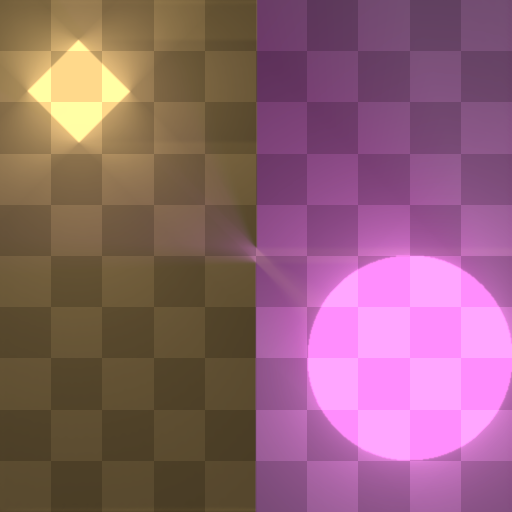 | 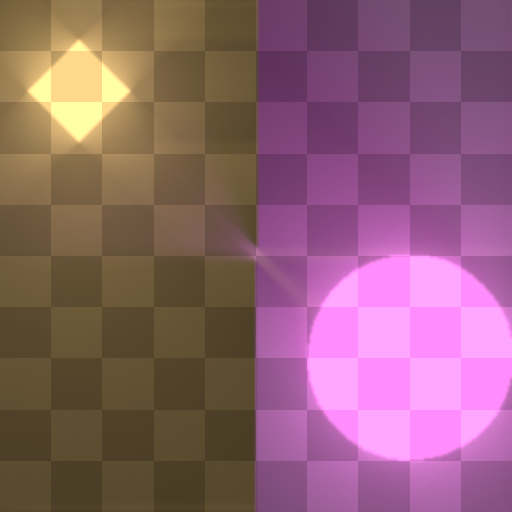 |
| Lightmap resolution 512 (1/1) | Lightmap resolution 256 (1/2) |
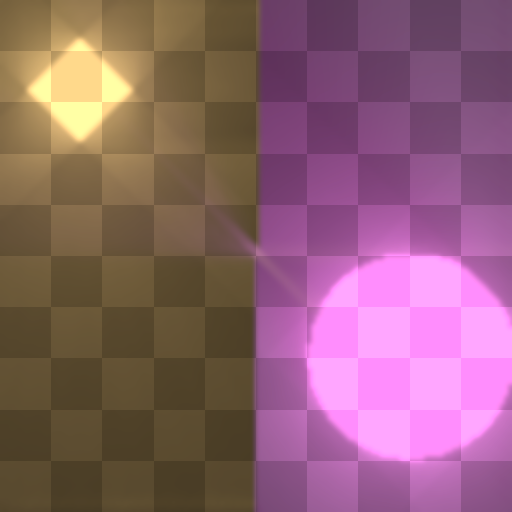 | 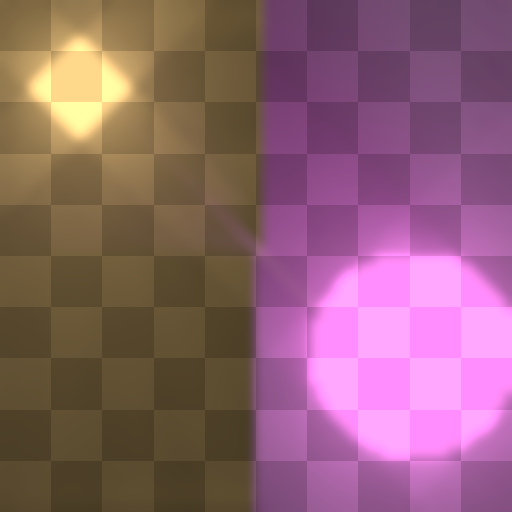 |
| Lightmap resolution 128 (1/4) | Lightmap resolution 64 (1/8) |
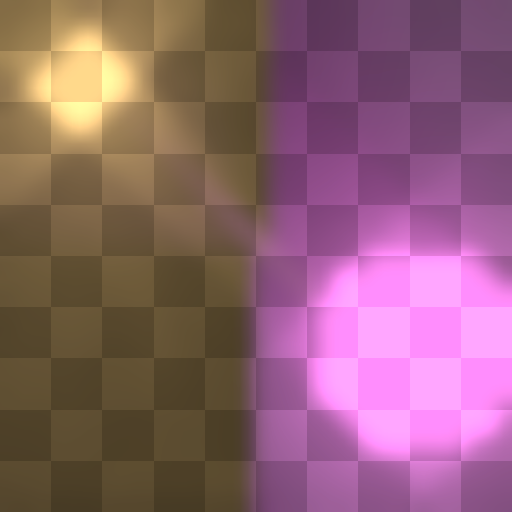 | 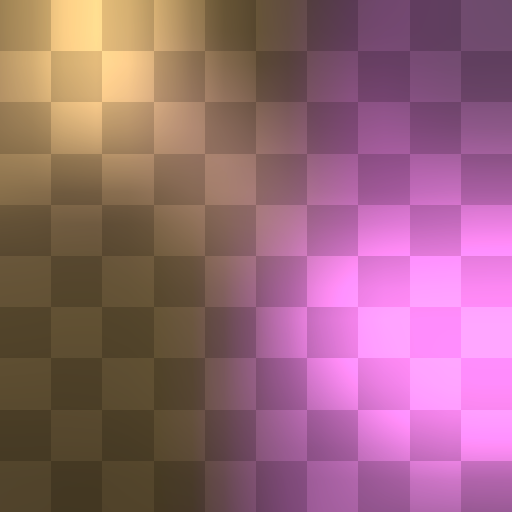 |
| Lightmap resolution 32 (1/16) | Lightmap resolution 8 (1/64) |
Radiance Cascade Variants
The system supports three implementation variants, each with different characteristics:
Vanilla
- The original implementation of radiance cascades
- Can be the fastest option in some scenarios
- Very prone to ringing artifacts
BilinearFix
- Modified version that addresses artifacts in the vanilla implementation
- Merges cascades more precisely by casting 4× more rays
- Better quality than Vanilla at a substantial performance cost
HolographicRC
- Uses alternative probe placement that perfectly tiles the screen with light probes (no overlapping and no gaps)
- Enables the use of ray extensions acceleration structure that makes the performance cost almost independent of the scene complexity
- Preserves sharp gradients much better than the other two variants
- Default: Recommended for most scenarios
Examples
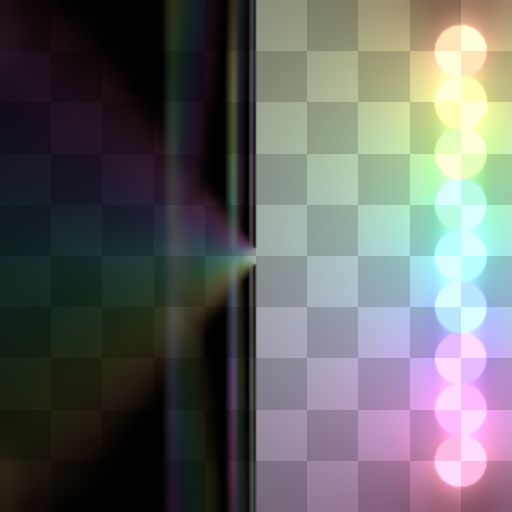 | 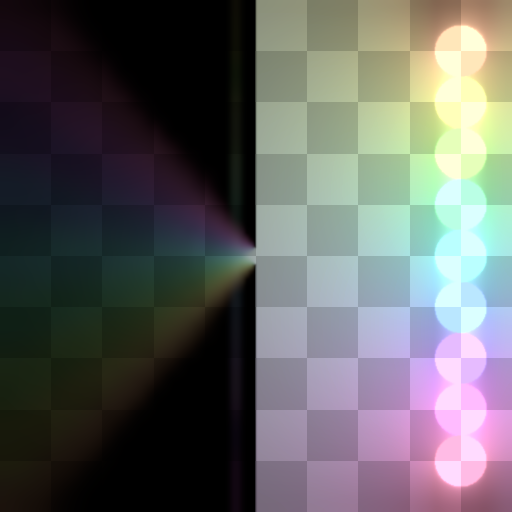 |
| Vanilla | Bilinear fix |
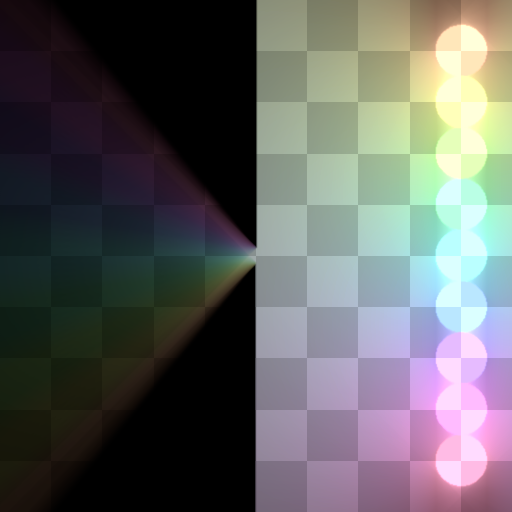 | |
| Holographic RC |
Processing Options
Process Analytical Lights on GPU
- Type: Boolean
- Default: Disabled
- Description: Determines whether analytical light sources are processed on the GPU or the CPU
- Impact: Enabling can improve performance by offloading light processing to the GPU. Effectiveness depends on scene complexity and resolution. Has no effect on the visuals.
Ray Marching Settings
Ray marching is used for sprite lights handling.
Ray Marching Tolerance
- Range: 0-10 pixels
- Default: 1
- Description: Defines the tolerance level, as well as the minimum step size for ray marching when handling sprite lights
- Impact: Lower values increase precision at the cost of performance. Higher values blur the sprite lights features.
Examples
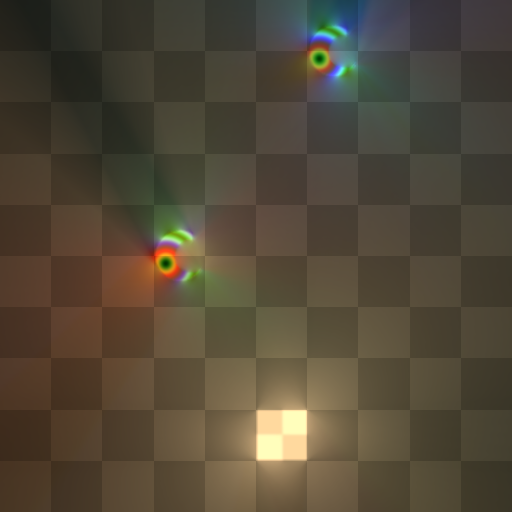 | 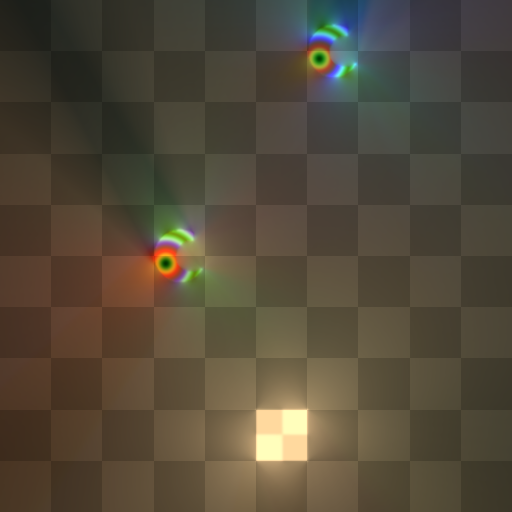 |
| Tolerance 0 | Tolerance 1 |
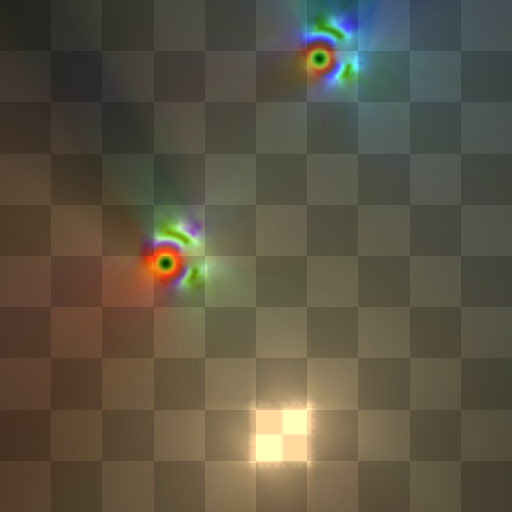 | |
| Tolerance 10 |
Max Ray Marching Steps
- Range: 1-100 steps
- Default: 30
- Description: Maximum number of iterations for ray marching
- Impact: Higher limit makes the ray marching more likely to converge. If the ray runs out of iterations before achieving the required tolerance, it is going to sample the color of the closest sprite light color. It helps to mask some of the divergence artifacts. But in scenes with high contrast sprite light colors it may still lead to glowy artifacts.
Examples
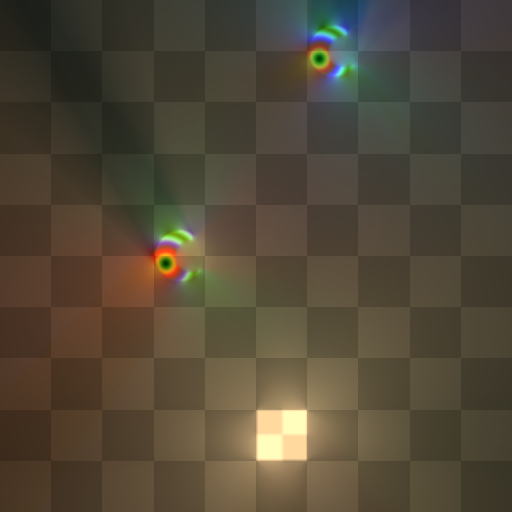 | 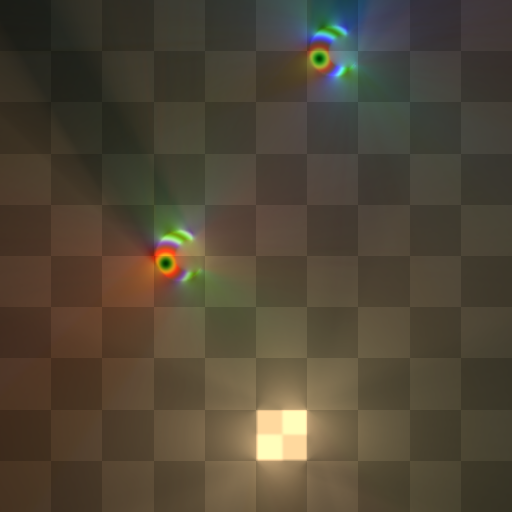 |
| 100 steps | 20 steps |
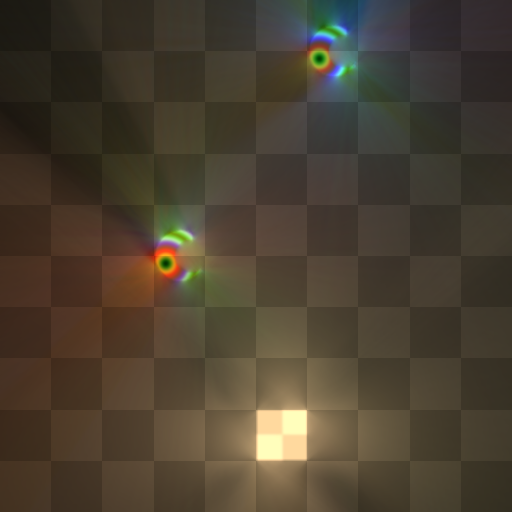 | 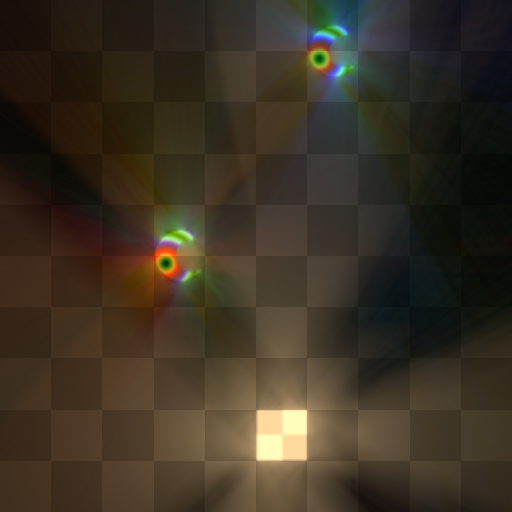 |
| 10 steps | 5 steps |
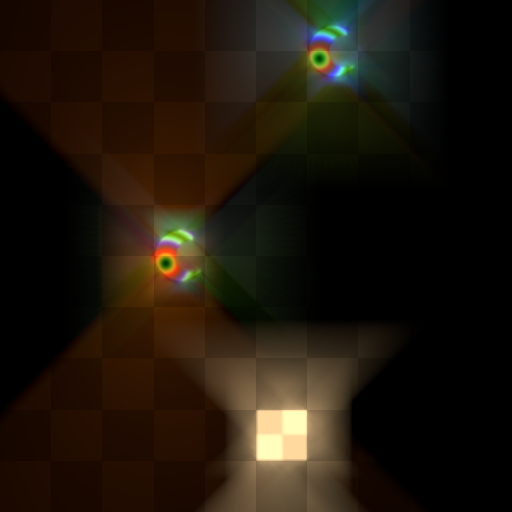 | |
| 1 step |
Ray Marching Settings co-relation
Note that these two settings are highly co-related, and they often need to be tweaked together to achieve the best quality and performance balance. For example, when lowering the step limit, it may be a good idea to raise the tolerance level to compensate for the low number of steps taken with larger steps.
In this example the step limit is set to 2 for different tolerance levels:
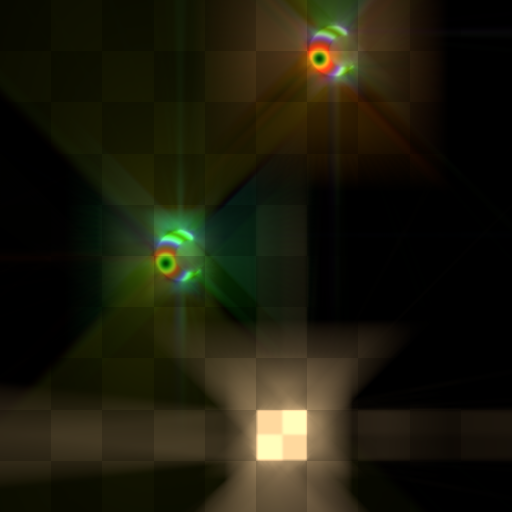 | 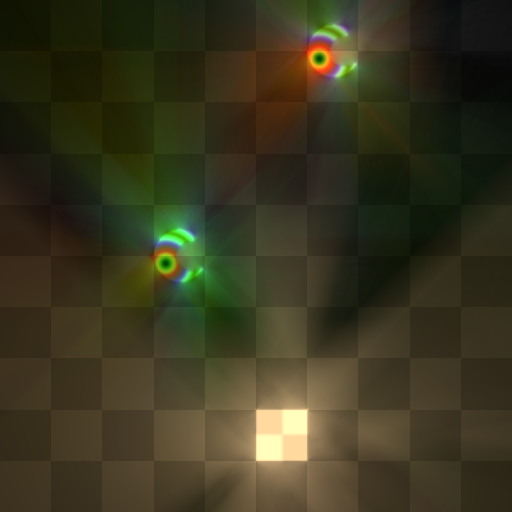 |
| Tolerance 0 | Tolerance 1 |
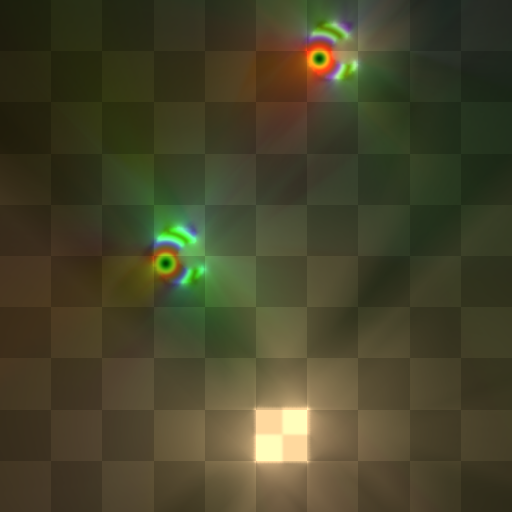 | 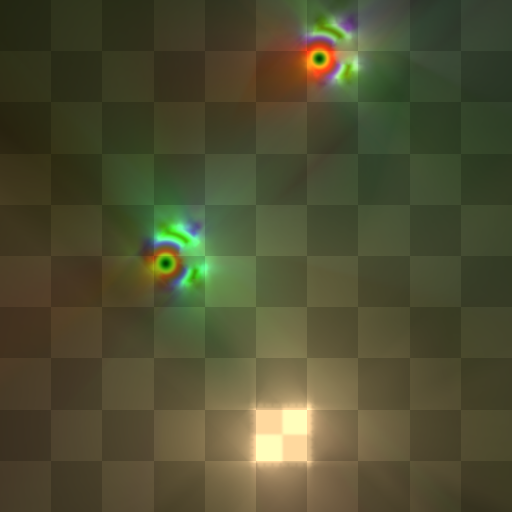 |
| Tolerance 2 | Tolerance 8 |
Holographic RC Specific Settings
The following settings only affect the HolographicRC variant and have no effect when using other variants.
Ray Extensions Acceleration Structure
Ray extensions acceleration structure significantly improves performance, especially in complex scenes. Note, however, that it requires a lot of VRAM for higher resolutions. In the ballpark of 2 GB of peak VRAM usage for a 3840p lightmap, scaling roughly quadratically with the resolution (or linearly with the number of pixels). That is, a FullHD lightmap would need approximately 0.5 GB, and an 8K lightmap would need ~8 GB. Nevertheless, in most cases you are likely to get better quality/performance balance by keeping ray extensions enabled and balancing its drawbacks by other means (mostly the lightmap resolution)
Use Ray Extensions
- Type: Boolean
- Default: Enabled
- Description: Determines whether ray-extensions acceleration structure is used.
True Trace Threshold
- Range: 1-16 cascades
- Default: 3
- Description: When Ray Extensions is enabled, determines how many cascades will truly trace rays to determine the direct light contributors' influence. Higher cascades will extrapolate the data from lower cascades.
- Impact: Lower values greatly improve performance and make it much less dependent on the scene complexity. Extremely low values may lead to some artifacts (see below). Note that even high values that would not extrapolate any data may still lead to better performance because the workload gets grouped in a more GPU-friendly way enabling better GPU utilization.
Examples
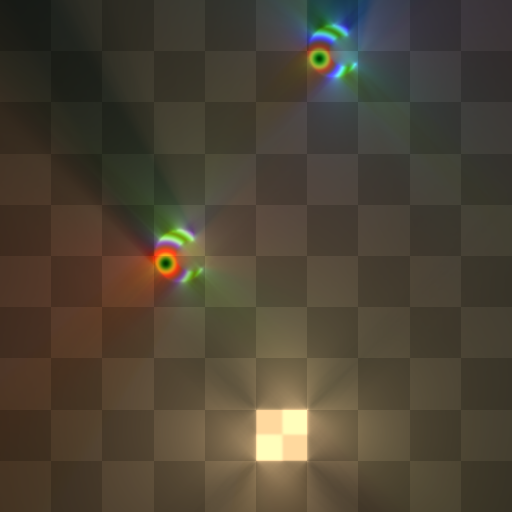 | 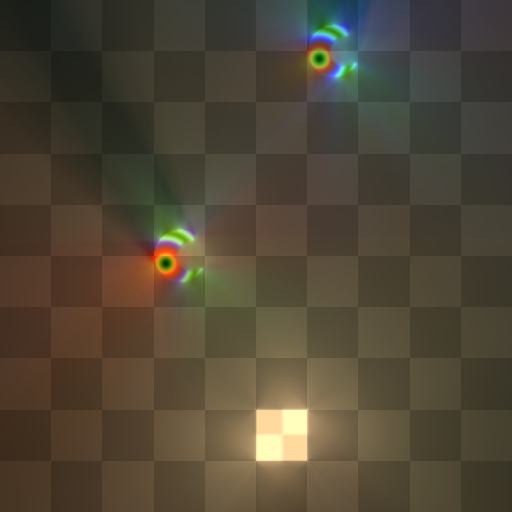 |
| True Trace Threshold 1 | True Trace Threshold 2 |
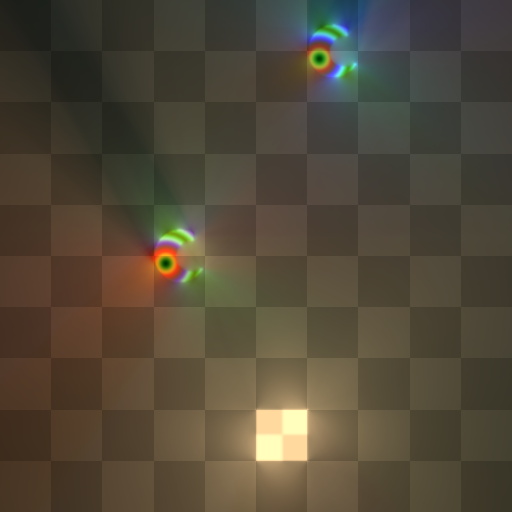 | 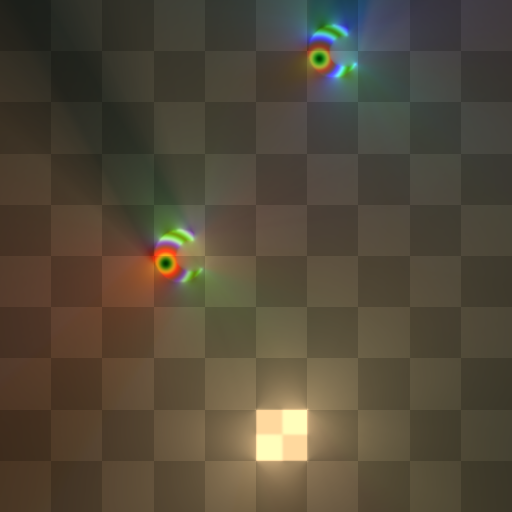 |
| True Trace Threshold 3 | True Trace Threshold 5 |
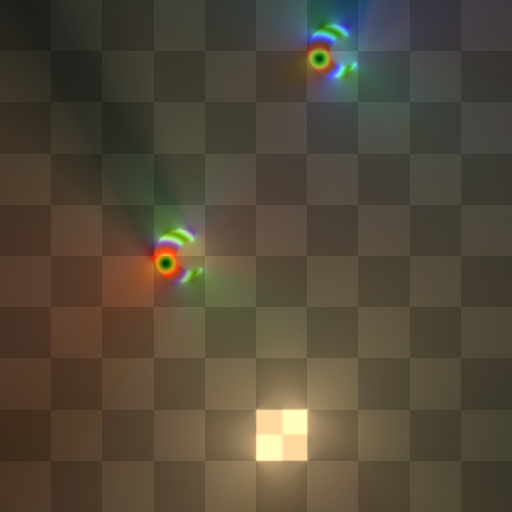 | 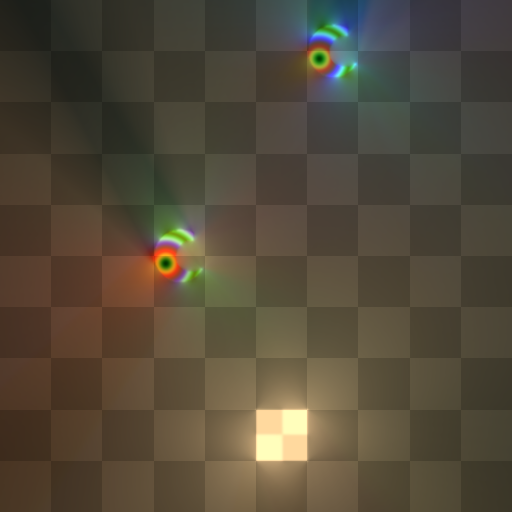 |
| True Trace Threshold 7 | True Trace Threshold 9 |
Notice the diminishing returns. While at threshold 1 there are very noticeable laser-beam-like artifacts, past threshold 5 there is barely any difference at all. The recommended setting of 3 should provide good quality for most cases, unless you need to accurately capture very shallow light rays (e.g., a pinhole scene with a hole very close to light sources).
Border Light Capture Settings
The Radiance Cascades is a screen-space effect. Meaning that on its own it's unable to capture the light information from the outside of the camera frustum. To work around this limitation, there is a separate cone tracing pass that collects the information about the incoming light along the screen borders from different directions so it could be used in the main Radiance Cascades pass. The two settings below provide control over the precision of this pass.
The full scene, used in the examples below (showing the out-of-screen light sources):
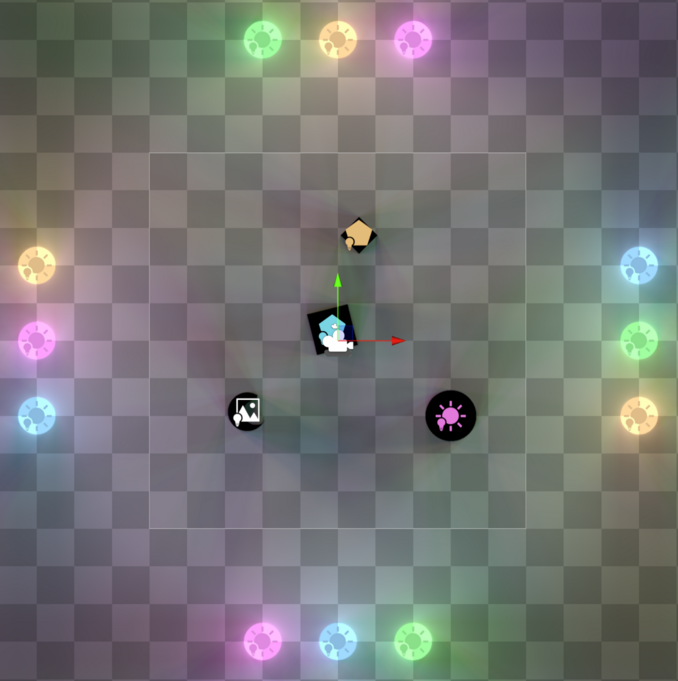
Also note that some of the artifacts caused by the insufficient border light capture quality are less noticeable in the static shots but very apparent in motion.
Border Light Linear Scale
- Range: 0-1
- Default: 0.5
- Description: Determines the scaling factor for border light textures (1 is full lightmap resolution, 0 is a single point along every edge)
Examples
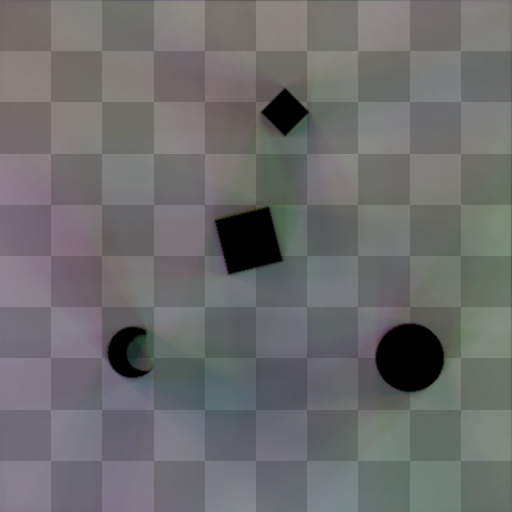 | 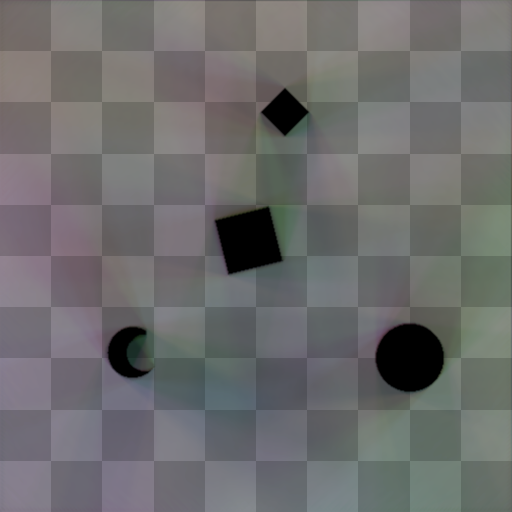 |
| Linear Scale 100% | Linear Scale 25% |
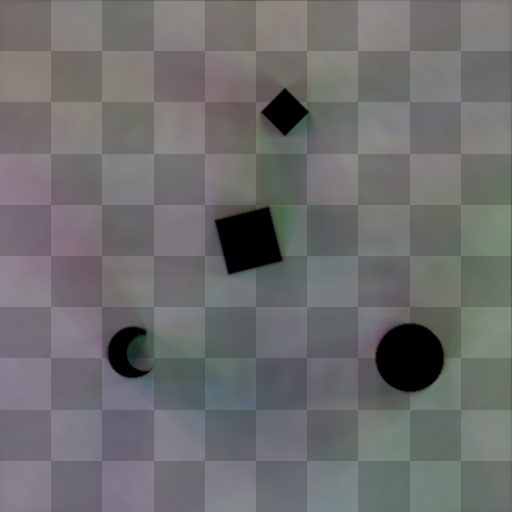 | 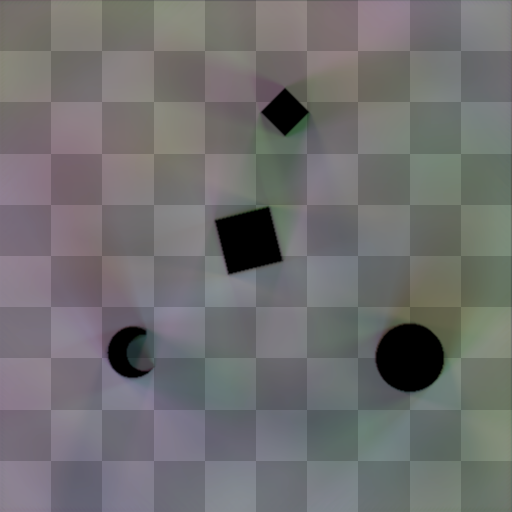 |
| Linear Scale 6.25% | Linear Scale 0.78% |
Border Light Angular Resolution Offset
- Range: 0-16
- Default: 0
- Description: Offset applied to angular resolution of border light textures (0 collects data from all directions required by the HRC pass, 1 is half the directions, 2 from quarter the direction, etc.)
Examples
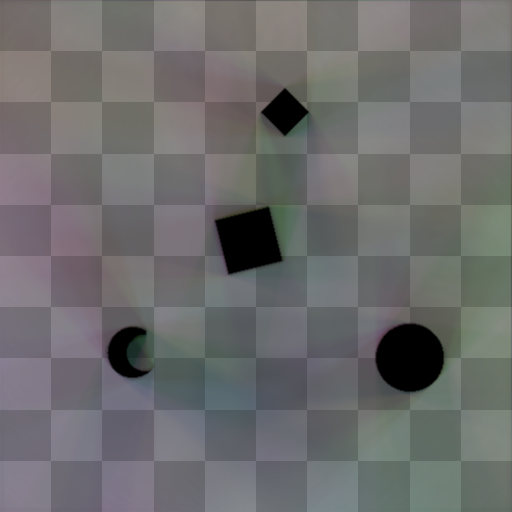 | 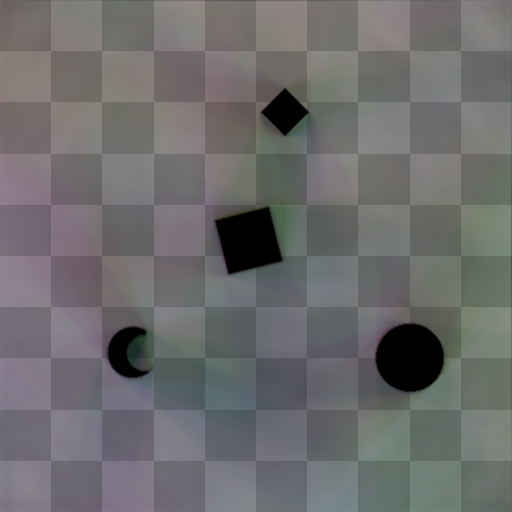 |
| Offset 0 | Offset 2 |
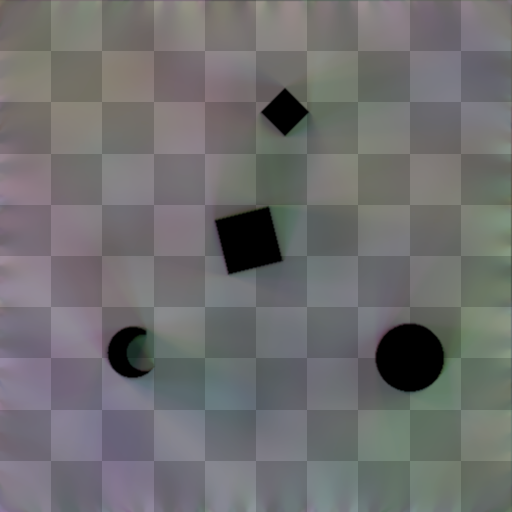 | 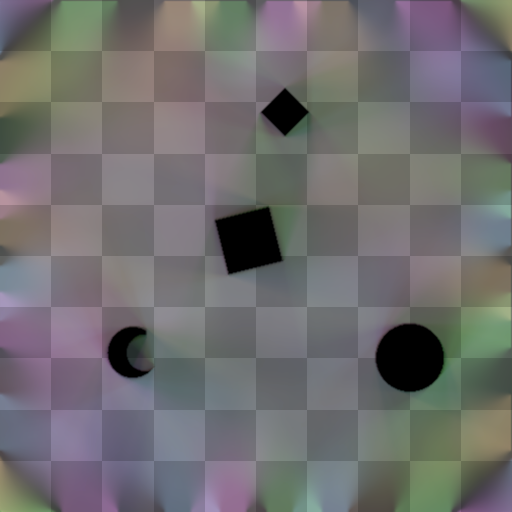 |
| Offset 5 | Offset 7 |
Lightmap Filter
Controls the filtering method applied to the lightmap:
Bilinear
- Uses basic hardware-driven bilinear sampling without additional filtering
- The least expensive option in terms of performance
- May result in blocky/pixelated appearance when using reduced lightmap resolution
- Not recommended for Holographic RC as it preserves checkerboard artifacts that are inherent to the method
Kawase Upsample
- Default: Recommended for most scenarios
- Applies a modified Kawase Upsample kernel to the lightmap:
| 1 | 3 | 1 |
| 3 | 10 | 3 |
| 1 | 3 | 1 |
- Effectively reduces pixelation from lightmap upscaling
- Addresses checkerboard artifacts in Holographic RC mode
Cross
- Applies a cross-blur kernel to the lightmap:
| 0 | 1 | 0 |
| 1 | 4 | 1 |
| 0 | 1 | 0 |
- Less aggressive blur compared to Kawase Upsample
- Mitigates checkerboard artifacts in Holographic RC with less blurring
Examples
All examples are applied to HRC variant
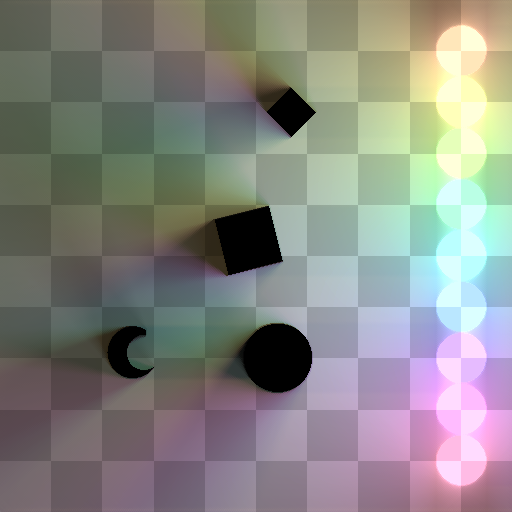 | 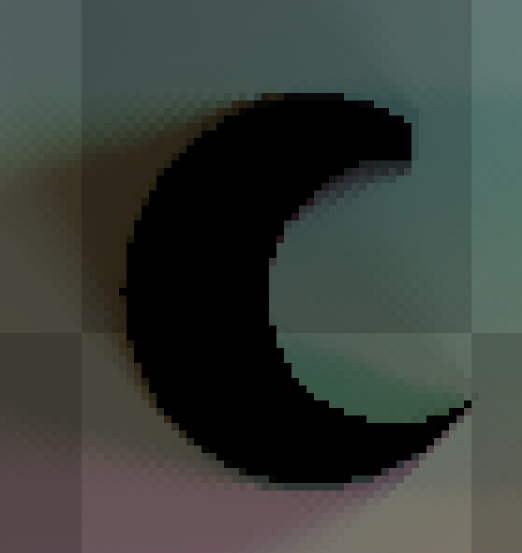 |
| Bilinear | Bilinear closeup |
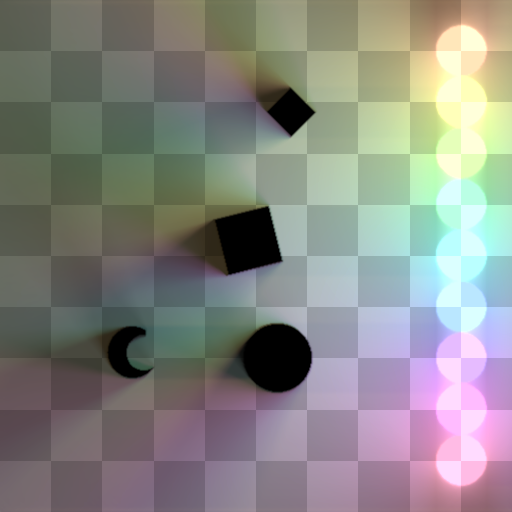 |  |
| Modified Kawase | Modified Kawase closeup |
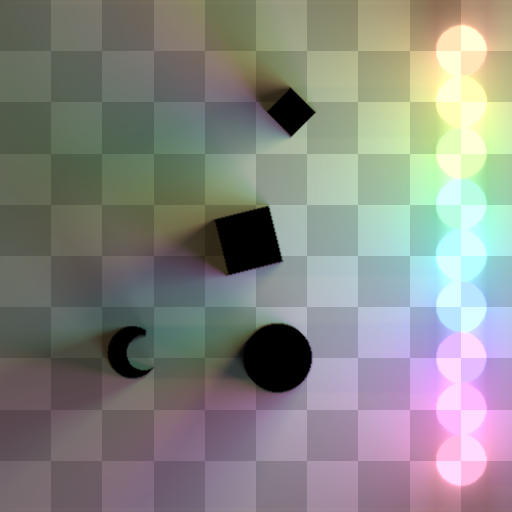 |  |
| Cross | Cross closeup |
See Also
- Usage Guide for practical usage examples