Custom Material Integration
It is possible to integrate 2D Radiance Cascades lighting system with your custom materials and shaders. Both ShaderGraph and HLSL integrations are available.
Shader Graph Integration
To use 2D Radiance Cascades lighting in Shader Graph:
- Open or create a new shader graph.
- In Unity Editor, go to
Packages/2D Radiance Cascades/Shaders/ShaderGraph. - See the three pre-configured subgraphs:
GetRCLightMapColor- provides the main lightmap color,GetRCDirectionalColor- provides the directional lightmap color for a specified directionGetRCPhongDiffuse- Provides Phong diffuse shading term using the directional lightmaps, and the surface normal
- Drag and drop the subgraph you need into your shader graph
- Connect inputs and outputs to your needs
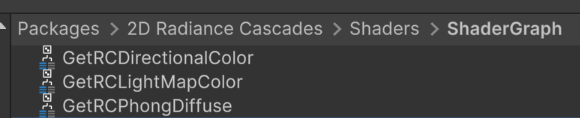 | Pre-configured subgraphs location |
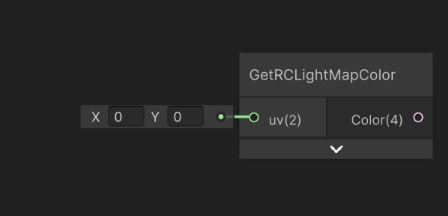 | GetRCLightMapColorInputs: - UV: Lightmap UV location. Most likely you'd want to pass Screen Position hereOutputs: - Color: The sampled lightmap color |
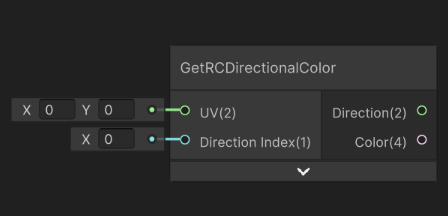 | GetRCDirectionalColorInputs: - UV: Lightmap UV location. Most likely you'd want to pass Screen Position here- Direction Index: integer index of the direction to sample the color from. Should be an integer in the range [0; 3] Outputs: - Direction: a vector representing the direction the sampled light is coming from - Color: The sampled lightmap color |
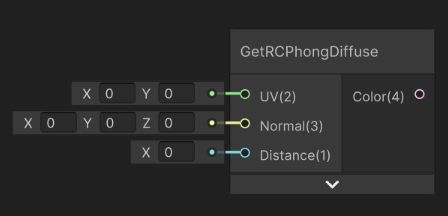 | GetRCPhongDiffuseInputs: - UV: Lightmap UV location. Most likely you'd want to pass Screen Position here- Normal: surface normal - Distance: Distance from the light to the surface Outputs: - Color: Computed diffuse color value |
Advanced Manual Integration
For a completely manual integration, you can access the lightmaps directly as global textures and use them however you like.
The Main Lightmap:
- In the shader graph add a Texture 2D parameter
- Set it's
ScopetoGlobal - Set the
Referenceto_RCLightmap
The Directional Lightmaps:
- In the shader graph add a Texture 2D Array parameter
- Set it's
ScopetoGlobal - Set the
Referenceto_RCLightmapDirectional - Directional lightmaps are stored in four slices of the Texture 2D Array.
HLSL Shader Integration
To access the lightmaps in a custom HLSL shader:
// Include the required headers
#include "Packages/com.unity.render-pipelines.universal/ShaderLibrary/Core.hlsl"
#include "Packages/com.dim0v.radiance-cascades-2d/Shaders/Common.hlsl"

struct appdata
{
    float3 pos : POSITION;
    float2 uv : TEXCOORD0;
};

struct v2f
{
    float4 pos : SV_POSITION;
    float2 uv : TEXCOORD0;
};

// Vertex shader
v2f vert(appdata i) {
    v2f o;

    o.uv = i.uv;
    o.pos = GetNormalizedScreenSpaceUV(i.pos);

    return o;
}

// Fragment shader
float4 frag(v2f i) : SV_Target
{
    // ...

    // Sample main lightmap
    float3 main_light = GetRCLightmapColor(i.pos);

    // Sample directional lightmaps
    float3 directional_lights[RC_DIRECTION_COUNT];
    for (int i = 0; i < RC_DIRECTION_COUNT; ++i) {
      float2 dir;
      directional_lights[i] = GetRCDirectionalColor(i.pos, i, dir);
    }

    // Compute Phong diffuse term
    float3 lighting = GetRCPhongDiffuse(i.pos, my_normal, my_distance);

    // ...
}
Key points:
- Include
Packages/com.unity.render-pipelines.universal/ShaderLibrary/Core.hlslfor convenience. - There are tree functions for accessing the lightmap data:
GetRCLightmapColor- Accessing the main lightmapGetRCDirectionalColor- Accessing the directional lightmapsGetRCPhongDiffuse- Computing the Phong Diffuse shading using the directional lightmaps
- You need to sample using screen-space coordinates (normalized)
- The lightmap contains RGB values representing the accumulated lighting
RC_DIRECTION_COUNTcontains the number of directional lightmaps availableGetRCDirectionalColorhas an out parameter for the direction the light is coming from for convenience- For shortcut functions used in the example to exist, you need to include (directly or indirectly)
Packages/com.unity.render-pipelines.core/ShaderLibrary/Common.hlslbefore thePackages/com.unity.render-pipelines.universal/ShaderLibrary/Core.hlsl. Otherwise, use more verbose explicitly typed alternatives (e.g.,GetRCLightmapColor_floatorGetRCLightmapColor_halfinstead ofGetRCLightmapColor)
Advanced Manual Integration
For a completely manual integration, you can access the lightmaps directly as global textures and use them however you like.
You can either still include the Packages/com.unity.render-pipelines.universal/ShaderLibrary/Core.hlsl, or manually declare the following 2 globals:
Texture2D<half4> _RCLightmap- the main lightmap.Texture2DArray<half4> _RCLightmapDirectional- directional lightmaps. Individual lightmaps for different directions are stored in four slices of the Texture2DArray.